Overview
This guide provides information on how to:
Set up a persistent enrollment reminder for your Okta users.
Set up (optional) a workflow that will restrict access to other applications unless a user has registered with Beyond Identity.
Prerequisites
Ensure that you have working Okta/Beyond Identity integration.
Ensure you are able to add new group rules by navigating to Directory → Groups → Rules → Add Rules
If the Rules tab does not exist, please file a ticket with Okta support to enable “Rules for Group Membership” feature.
Beyond Identity Configuration
Step 1: Create a new user group, “Beyond Use Password”
Sign into the Okta portal as an administrator.
Navigate to Directory → Groups.
Create a new group with the following information.
Name: Beyond Use Password
Description: Beyond Use Password (Persistent Enrollment Reminder)
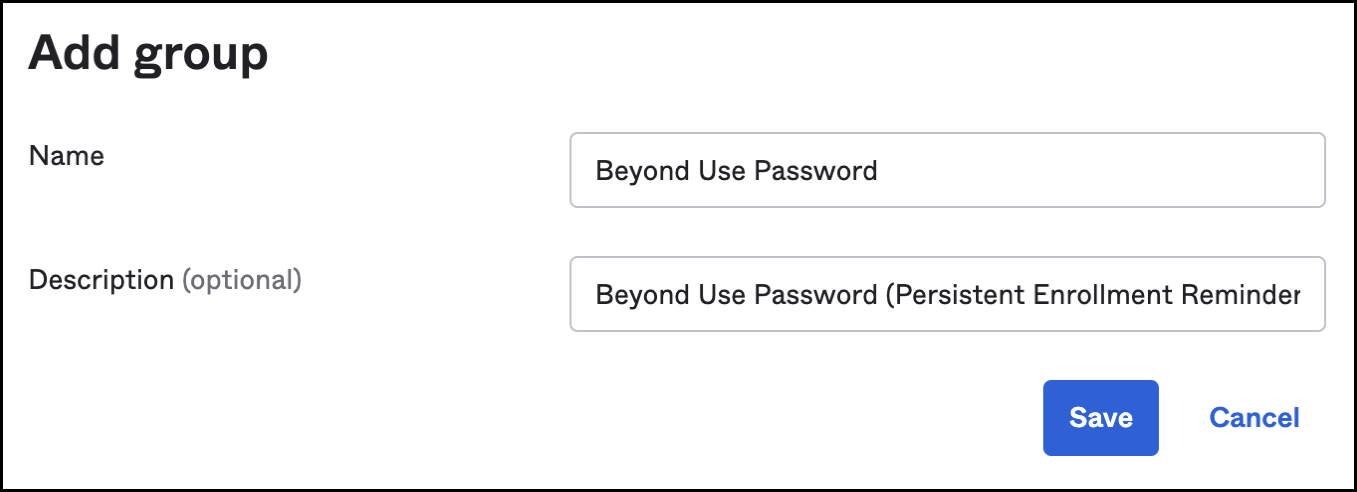
Step 2: Create a new Rule for the Beyond Use Password group
Navigate to the Beyond Identity user group created during the Beyond Identity/Okta integration.
Copy the unique Okta identifier for this group and save it for use in the next step.
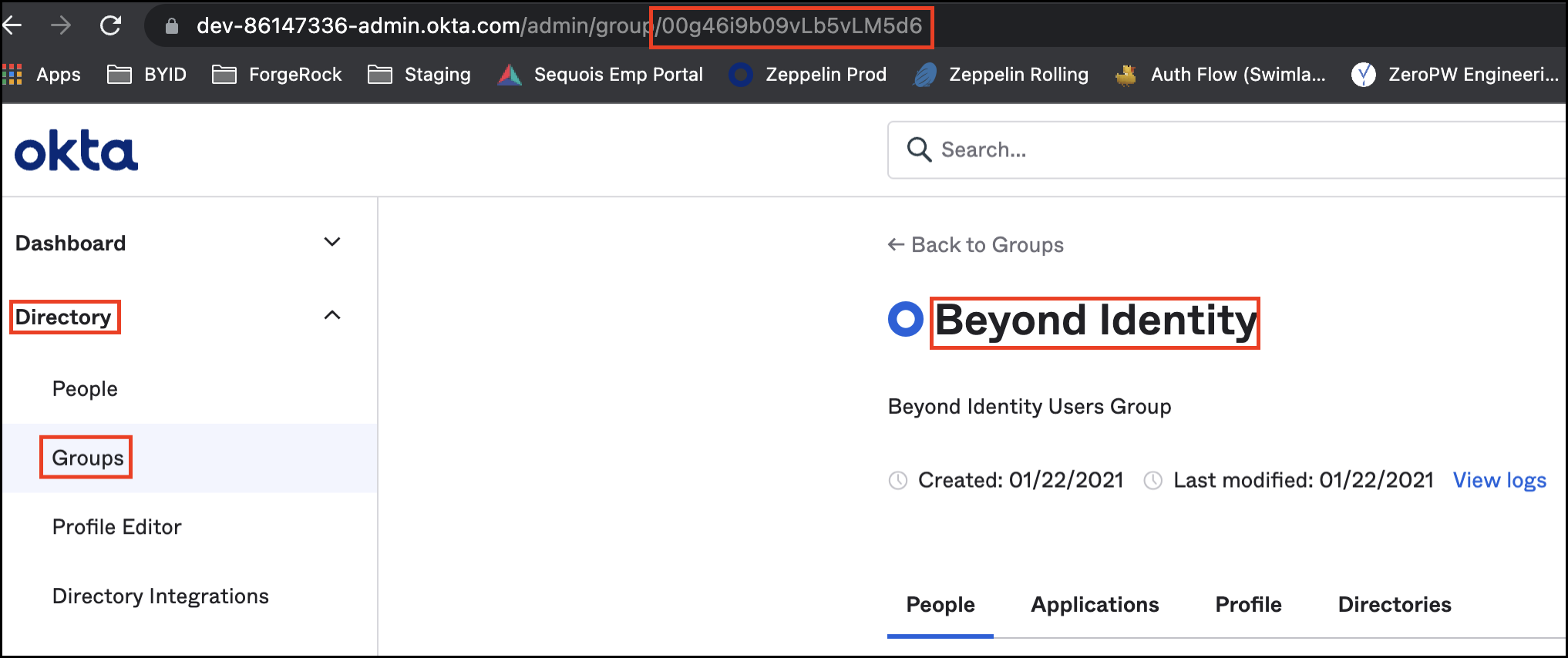
Navigate to Directory → Groups → Rules and select Add Rules.
Create a new rule with the following information:
Name: Beyond New User Rule
IF: select Use Okta Expression Language (advanced)
Language expression: isMemberOfAnyGroup("<Okta unique identifier>") and user.byndidRegistered != true
Ensure you are using the Okta unique identifier saved from the previous step
THEN Assign to: Beyond Use Password user group
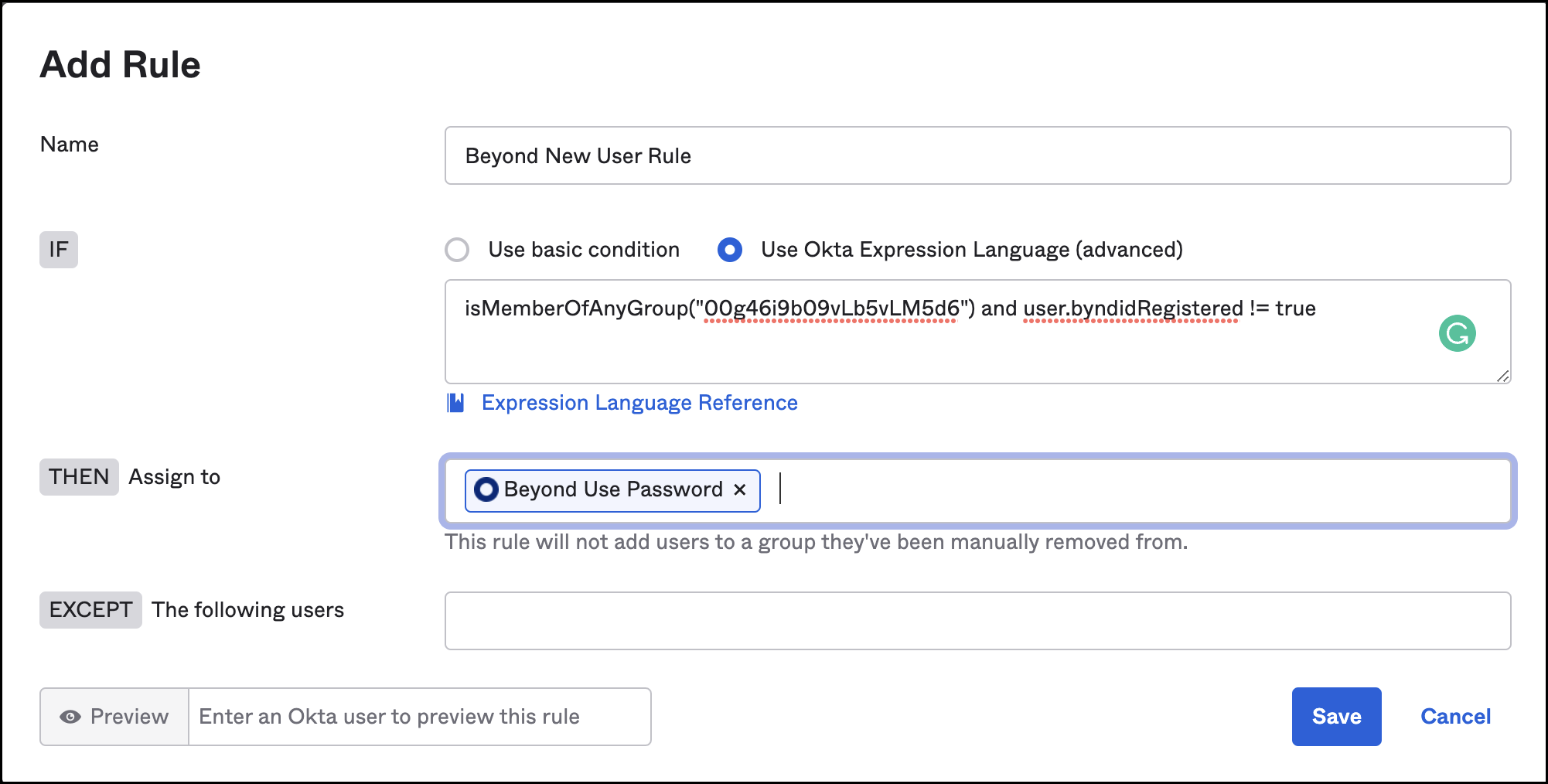
Note: This logic assigns the “Beyond Use Password” group to any user who is a member of the “Beyond Identity” group but has not yet registered a credential with Beyond Identity.
Step 3: Create a custom bookmark app
Navigate to the Beyond Identity User Portal application.
On the General tab, scroll down and save the App Embed Link for use in the next step.
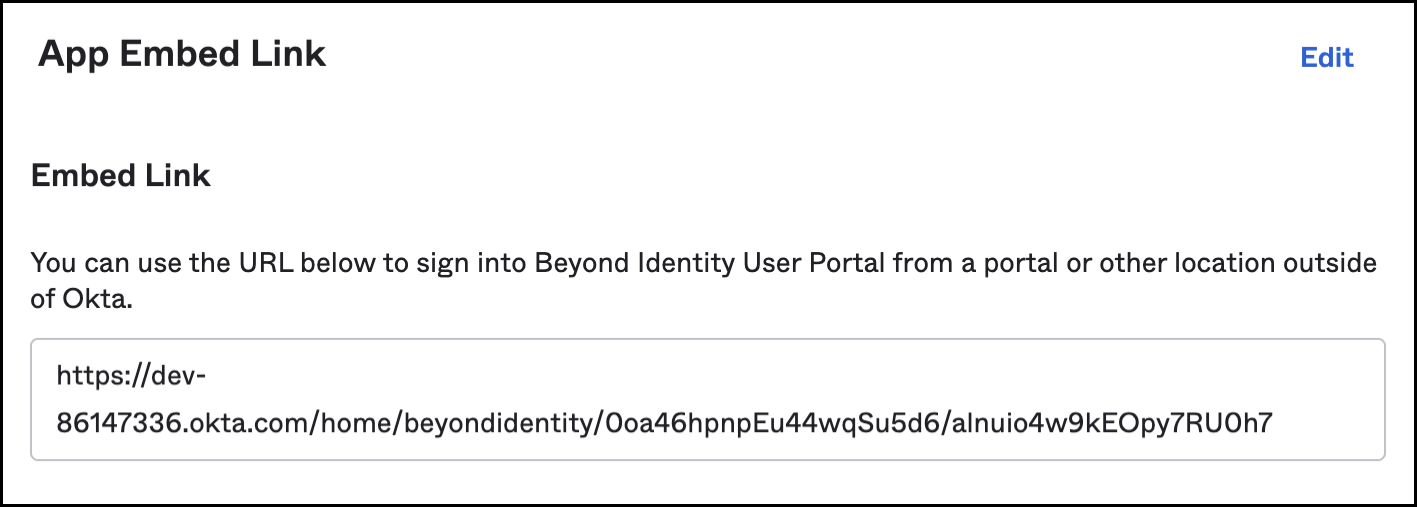
Navigate to Applications → Applications → Browse App Catalog and search for the Bookmark App.
Once the Bookmark App has been added, fill in the following information on the General tab:
Application Label: Beyond Identity Self Register
URL: paste the link saved from step 3
Select the check box next to Auto launch the app when user signs into Okta
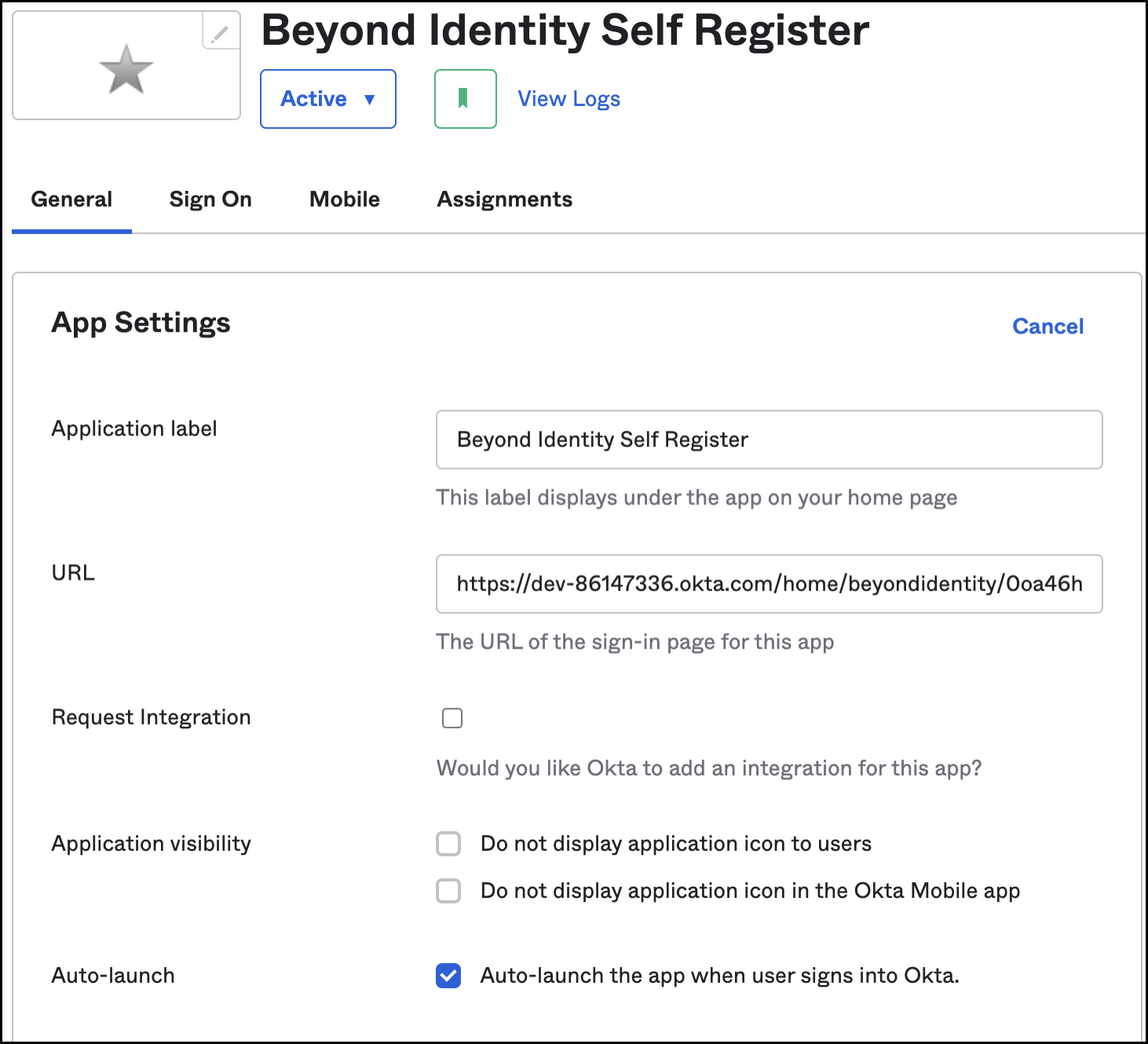
On the Assignments tab, assign the application to the Beyond Use Password user group.
Step 4: Create a user
In the Okta admin portal create a new user and assign them to the Beyond Identity user group.
Because this user has not yet registered a credential, they will also be assigned to the Beyond Use Password group based on the logic in the Beyond New User rule created in Step 2.
(Optional) App Restriction
The optional steps below will give you the ability to restrict access to Okta applications until a user has registered a credential.
In the steps below we will restrict access to the Beyond Identity Admin portal but in a customer facing scenario please work with the customer to identify the best application for them to restrict access to.
Sign into the Okta portal as an administrator
Navigate to Security → Authentication Policies
Select the Default policy
Click the Add a rule
Fill out the form as follows (leave unmentioned fields as default values):
Rule name
Beyond Identity Users With No Passkeys
AND User's group membership includes
At least one of the following groups:
Beyond Use PasswordTHEN Access is
Denied
Click Save
If necessary, drag the rule to Priority 1.