This article explains how to restore access when a credential becomes invalid on a device Authenticator. Updating the affected credential allows authentication to succeed again.
Issue
During application startup or authentication, the authenticator verifies the integrity of the credential stored on the device. If the credential is invalid—such as when required certificates or cryptographic keys are missing—the authentication attempt fails.
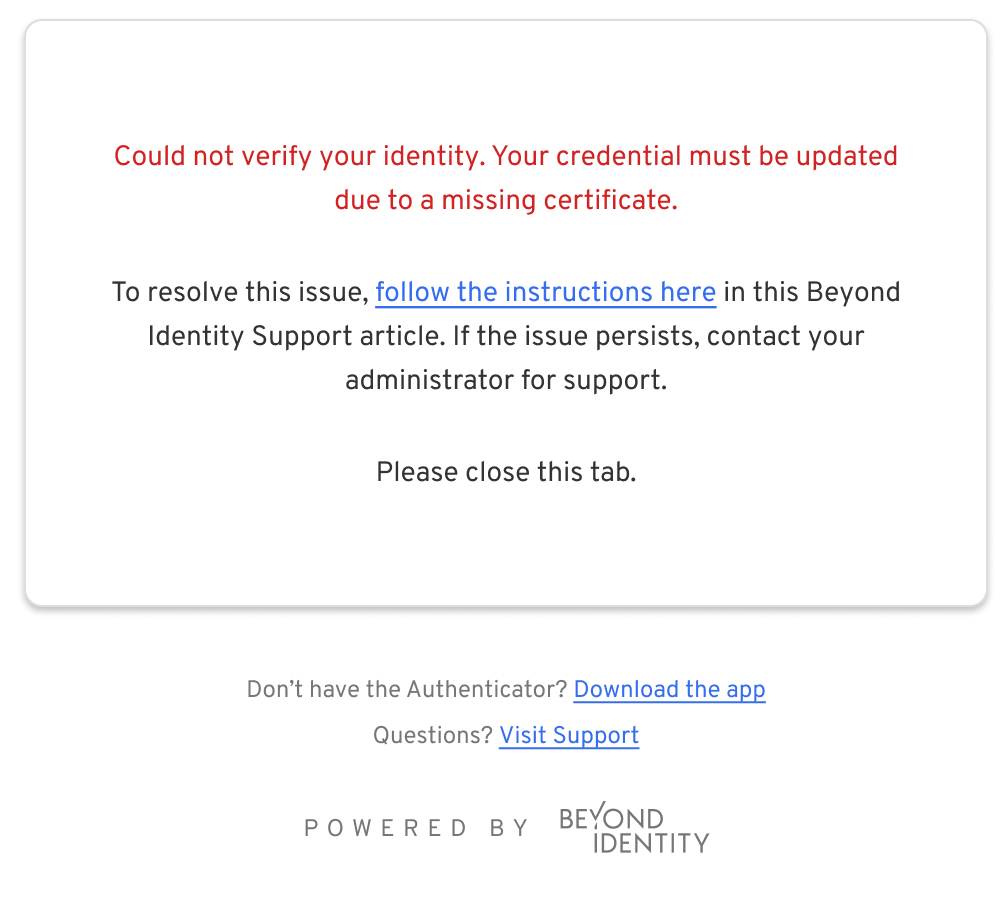
In this situation, the application or browser may display an error message indicating that the credential cannot be verified or is no longer valid.

The following error may get displayed in your browser tab processing the authentication.
Cause
This issue occurs when the credential stored on the device becomes invalid due to changes that affect the local keychain or Secure Enclave. The most common causes are described below.
1. The password was reset
A password reset changes the account password without requiring the old password. This process rotates the macOS keychain and Secure Enclave, which can invalidate existing credentials.
As a result:
The original keychain and Secure Enclave are renamed.
A new, empty keychain and Secure Enclave are created and linked to the reset password.
The Platform Authenticator attempts to update its state periodically, which may fail due to missing cryptographic material.
Important distinction:
A password reset is not the same as a password change.
Password change (old password provided):
The keychain remains intact and the credential is preserved. This includes password changes made through System Settings or enforced via MDM password expiration.Password reset (old password not provided):
The keychain is discarded and the credential is removed. This includes resets performed from another administrator account or through macOS Recovery.
2. The operating system reset the password after failed login attempts
If an incorrect password is entered multiple times at the login screen and the account is linked to an Apple ID, macOS may prompt the user to reset the password. This reset follows the same behavior described above and can invalidate the credential.
3. A backup was restored to a different device
When a system backup is restored to a new or different machine, the Secure Enclave is not migrated. Because Secure Enclave keys are hardware-bound, credentials associated with the original device cannot be reused.
4. Migration Assistant was used to transfer data
If Migration Assistant is used to copy user data to a new Mac, Secure Enclave data is not transferred. Credentials tied to the original device’s Secure Enclave become invalid on the new system.
If none of the causes above apply
If none of the scenarios listed above occurred, try the following recovery steps in order until the issue is resolved:
Open the Authenticator and press Command + R to refresh the application.
Close and reopen the Authenticator.
Log out of the macOS user account and log back in.
Restart the device.
If the issue persists or reoccurs after completing these steps, contact Beyond Identity Support.
Solution
This solution applies to the causes described in sections 1–4 above.
To restore functionality, the affected credential must be replaced with a valid version that includes an active certificate.
Step 1: Remove the affected credential
Remove the invalid credential from the device where the error is occurring.
Step 2: Restore the credential from another device
If the same credential exists on another device and is functioning correctly, you can migrate it back to the affected device.
Use the appropriate guide based on the device you are migrating to:
Migrate an existing credential to macOS
Migrate a credential from Linux
Migrate a credential to Android
Migrate an existing credential to iOS
Migrate an existing credential to Windows