AThis article explains how to enable the Android accessibility service in the Beyond Identity Authenticator to allow proper interaction with applications that restrict standard login flows.
Overview
This article explains how to enable the Android Accessibility service in the Beyond Identity Authenticator to support authentication in applications that restrict standard login flows.
Some applications enforce strict permissions on embedded web browser login screens, which can prevent the Beyond Identity Authenticator from interacting with the application as expected. When this occurs, authentication may fail or stall. Enabling the Android Accessibility service allows the Authenticator to interact with these restricted login screens and enables authentication to complete successfully in most cases.
Prerequisites
Beyond Identity Authenticator version 2.98.2 or later
Steps
These steps were captured on Android 15. If you’re using a different Android version, the dialogs may appear slightly different, but the overall flow remains the same.
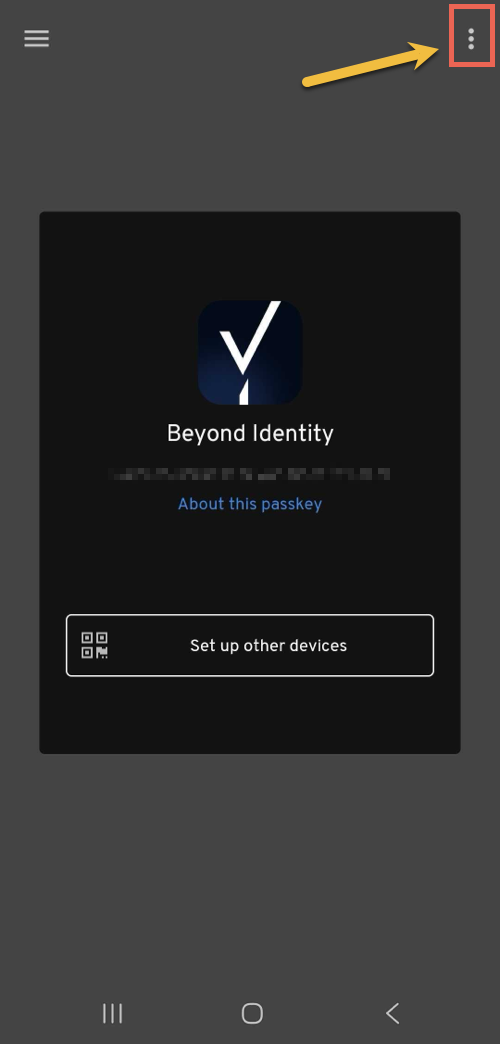
In your Android device, open the Beyond Identity Authenticator app, then tap the three dots on the left side of the screen.
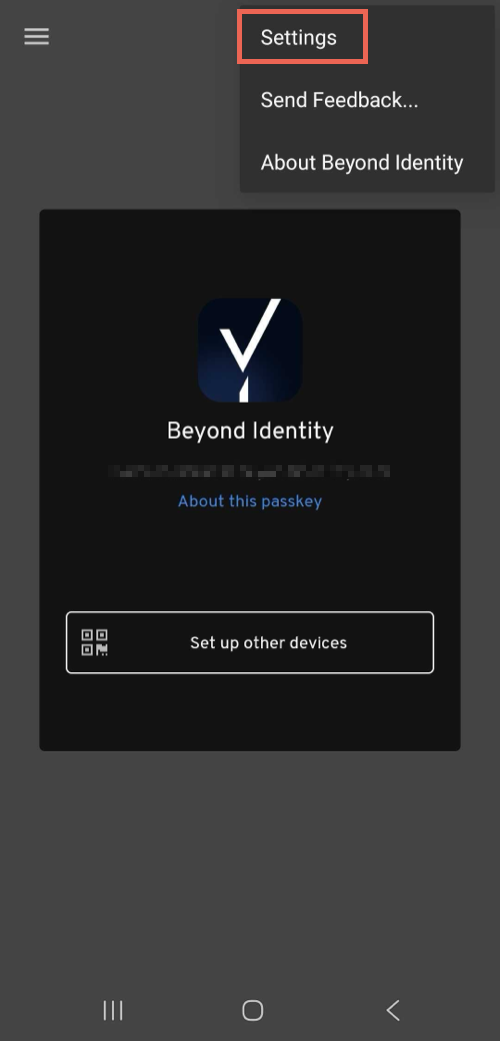
Tap Settings.
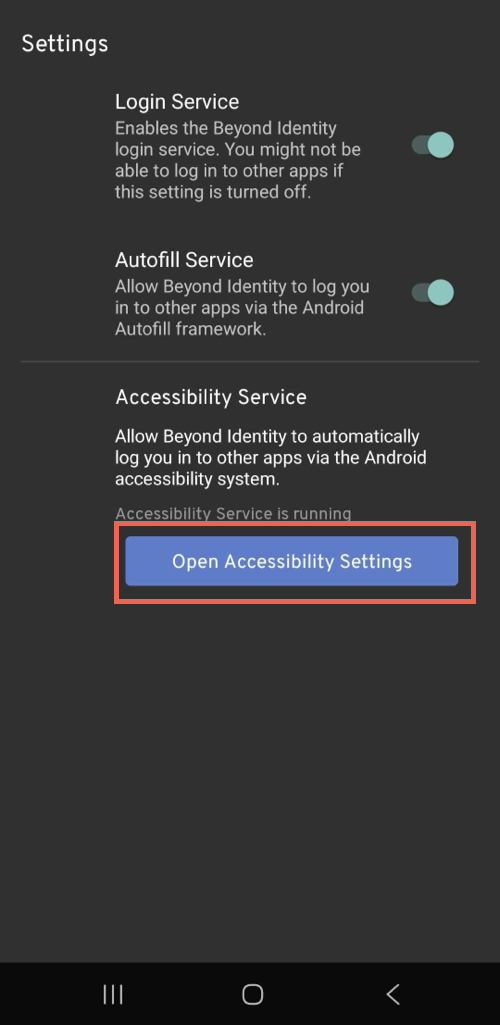
Tap Open Accessibility Settings.
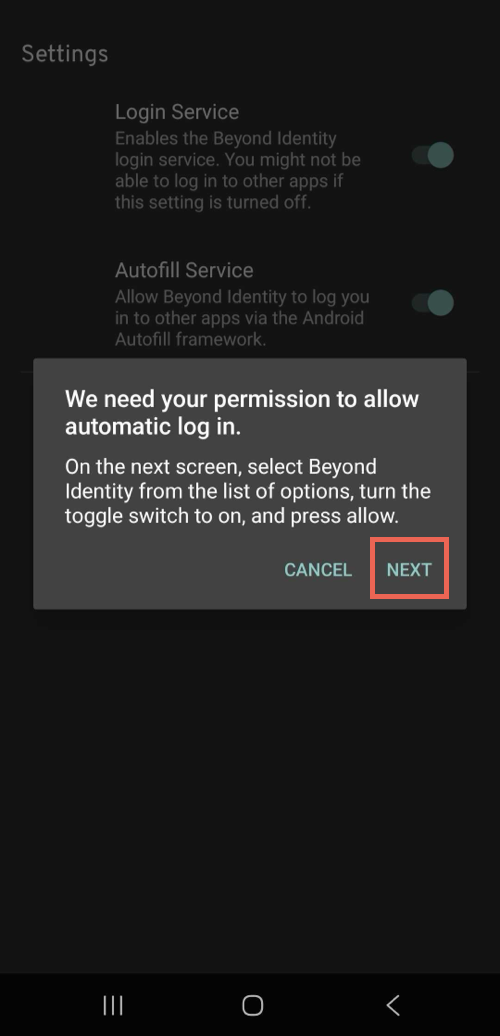
Tap Next on the confirmation dialog.
Tap Installed apps.
.png)
Ensure the Beyond Identity app is set to On.
.png)
Once enabled, tap the back button to navigate back to the Beyond Identity Authenticator settings screen, and confirm the Accessibility Service option is enabled.