This article explains how to identify the version of the Beyond Identity Authenticator you’re using.
Windows
Verify that the Beyond Identity Authenticator is running by clicking the ^ icon in the Windows system tray near the time and date, then selecting the Beyond Identity icon.
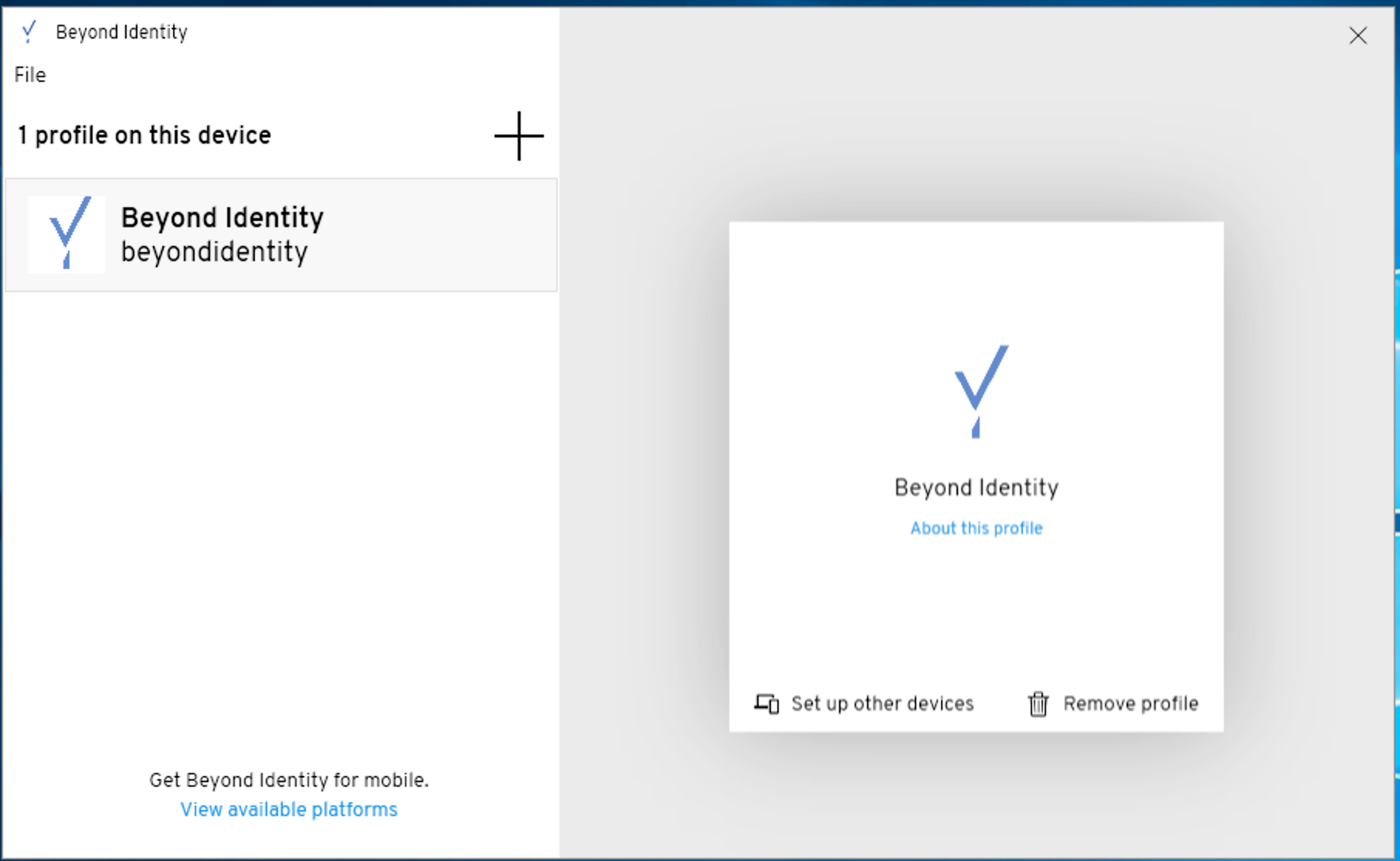
When the Beyond Identity Authenticator opens, select About my profile.
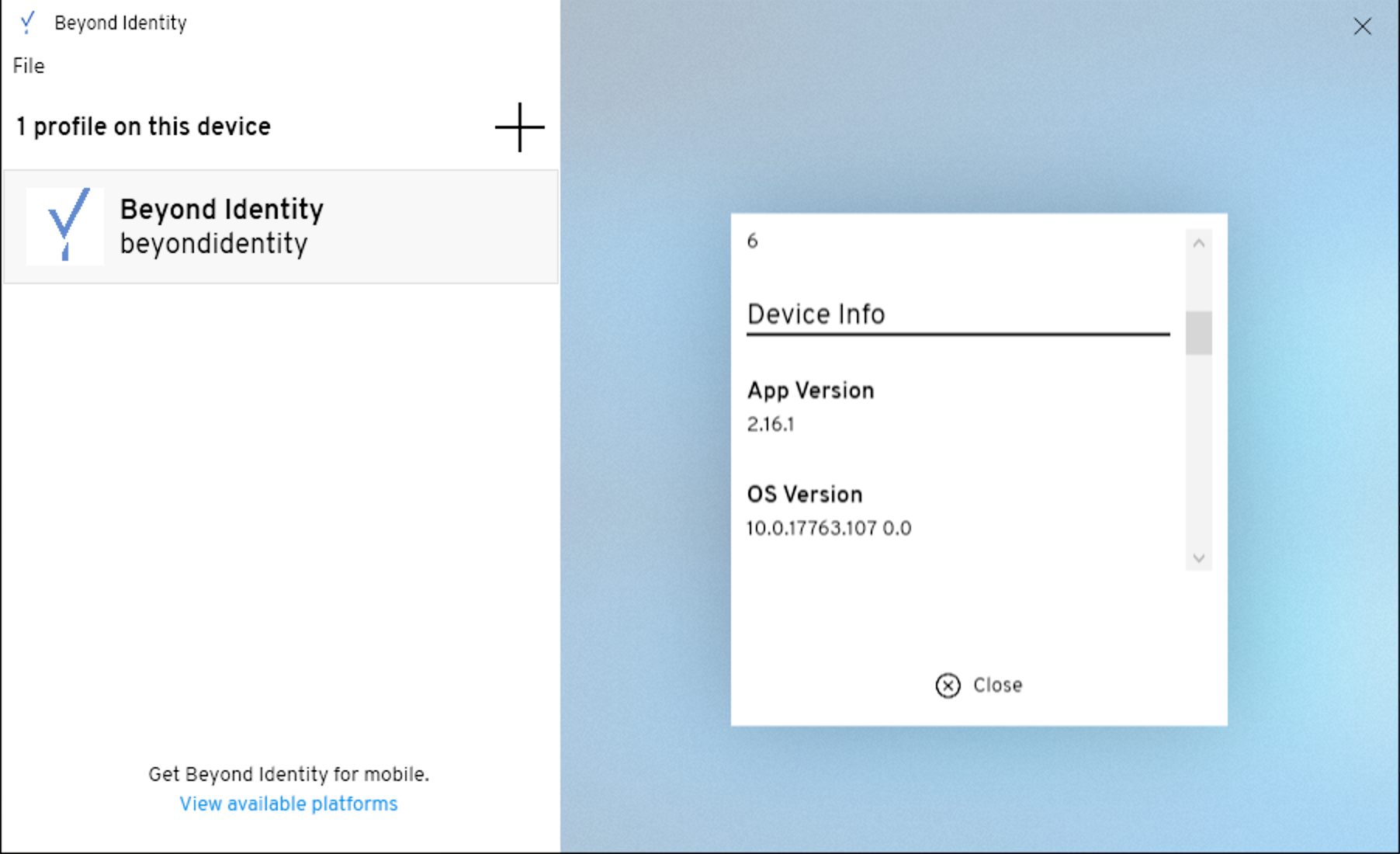
Scroll down to view the App Version, which displays the specific version of the Beyond Identity Authenticator you’re using.
|
|
macOS
Ensure the Beyond Identity Authenticator is running. If it isn’t, open Applications and launch Beyond Identity, or press Command + Space, type Beyond Identity, and press Enter.
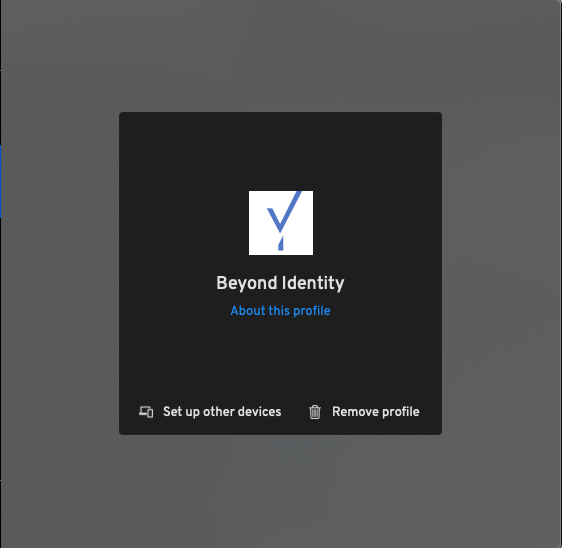
Once the app is open, select About my profile.
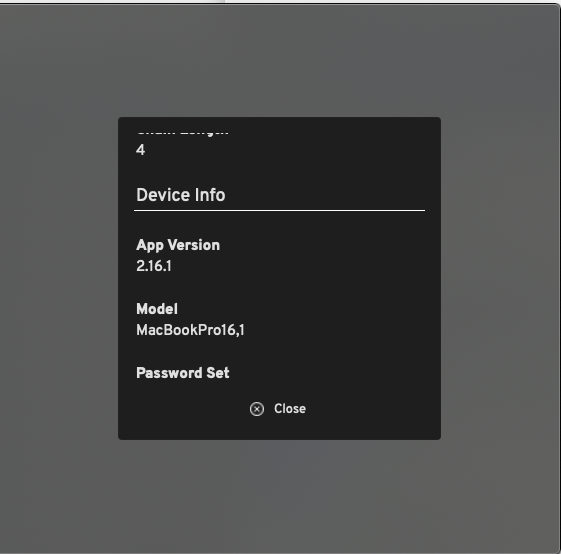
Scroll down to find App Version, which displays the version of the Beyond Identity Authenticator you’re using.
iOS
Tap the Beyond Identity Authenticator on your iPhone or iPad.
Once the app loads, tap About this profile beneath your company name and logo.
Your profile details will appear. Scroll down to find App Version, which shows the version of the Beyond Identity Authenticator you’re using.