This article provides an overview of the Beyond Identity Platform Authenticator log collecting.
Windows
On Windows, Beyond Identity logs are stored within the user’s AppData directory.
The default location is: %AppData%\BeyondIdentity\logs
Where %AppData% typically resolves to:
C:\Users\<username>\AppData\Local\Programs
Notes:
If the user profile is configured with roaming profiles, the log files will be stored in the roaming profile location. This is the default path Windows Explorer opens when navigating to %AppData%.
If hidden files and folders are not enabled in Windows Explorer, the AppData folder will not be visible.
To send logs to the Beyond Identity Support team, compress (zip) the logs folder and attach it to your support ticket response.
Windows Desktop Login
If you are using Windows Desktop Login (WDL) with the Beyond Identity Authenticator, two additional log sets are required:
Credential Provider logs
Desktop Login Service logs
These Windows Desktop Login–specific logs are located at: %ProgramData%\BeyondIdentity\logs
As with standard logs, compress (zip) the entire logs folder and attach it to your support ticket when submitting to the Beyond Identity Support team.
Windows Data Protection State Collection
CollectDPState.ps1 is a PowerShell script that collects and archives the data protection (DP) state of a Windows computer. It is intended to be run before and after reproducing an issue where a loss of protected data has occurred (e.g., the loss of Beyond Identity keys after a password reset).
Running the script will produce a timestamped zip archive of the collected data in the same directory as the script. The user should send the archive to Beyond Identity for analysis.
Data collected:
Basic computer and operating system information
TPM information, including the SRK and EK public keys
DPAPI provider registry values
DPAPI master key files (the contents of %APPDATA%\Microsoft\Protect)
Domain controller information
Applications of interest
macOS - Collecting Logs by the PA
In Beyond Identity, there is a feature built into the authenticator that generates the last two weeks of log files.
Open the Beyond Identity application, then under the Help menu, click on Generate logs...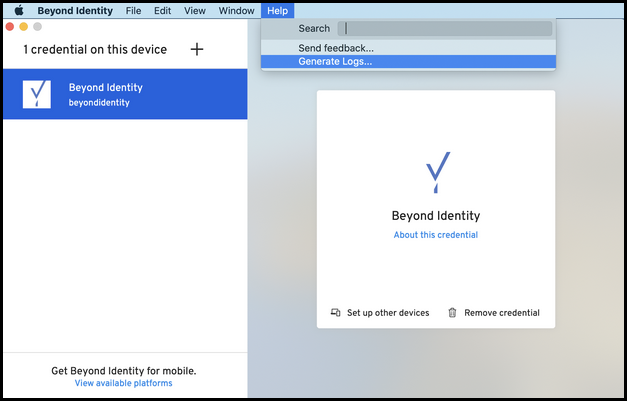
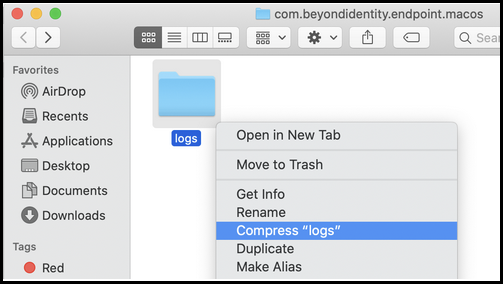
The logs will be produced in a finder window shortly after clicking the generate logs button. They can then be compressed and uploaded to support.
macOS - Collecting Logs with the log command
In macOS, the logs can also be collected in a terminal window by using the log command.
To dump all Beyond Identity PA logs into a macospa.log file:
log show --predicate 'subsystem CONTAINS "com.beyondidentity"' > macospa.logTo dump Beyond Identity PA logs from the last hour:
log show --predicate 'subsystem CONTAINS "com.beyondidentity"' -last 1h > macospa.logFor a real-time streaming of the logs to the terminal window, the following command can be used:
log stream --predicate 'subsystem CONTAINS "com.beyondidentity"'Sys Diagnose
macOS
The sys diagnose creates a system-wide log, where it will capture full system diagnostics. This can be helpful in situations where 3rd party services could be involved.
They can do so by hitting the keys: Shift + Control + Option + Command +
After about a minute or two, a finder window will open with the sysdiagnose file highlighted.
iOS
To trigger a sysdiagnose on iOS, perform the following steps:
Press VOL Up + Down + Power
Wait for 1s or 1.5s
release all buttons
You will feel a vibration. After a few minutes, go to Settings > Privacy > Analytics > Analytics Data; there be a log with sysdiagnose and the corresponding date.
Linux
On Linux, the log files can be found in:
~/.beyond-identity/logsLogging information is collected by date so in general, you only need to send the latest log file to the support team.