This article explains how to use the Events page in the Beyond Identity Admin Console to view, filter, search, and export detailed information about user and device activity events.
The Events page provides information on various types of events associated with user and/or device activity.
To view event details:
Log into the Admin Console and select Events from the left menu.
The Events page displays the following information:
Date and time the event occurred (Date & Time)
The name of the user associated with the event (Principal Actor)
The type of event that occurred (Event)
The ID associated with the event (Correlation ID)
Various options can be performed from this page. You can:
Filter events
View the profile and devices associated with a specific user
View details associated with a specific event
Search for events
Note: Clicking on the DATE & TIME column allows events to be displayed in ascending or descending order.
Filter Events
Events can be filtered by selecting one or more items from any of the drop-down menus at the tops of the page. Only those events matching the selected events will be displayed on the page. Events can be filtered on:
Date Range
Event type
Event outcome
Event service
Specific policy version
Filter on a Date Range
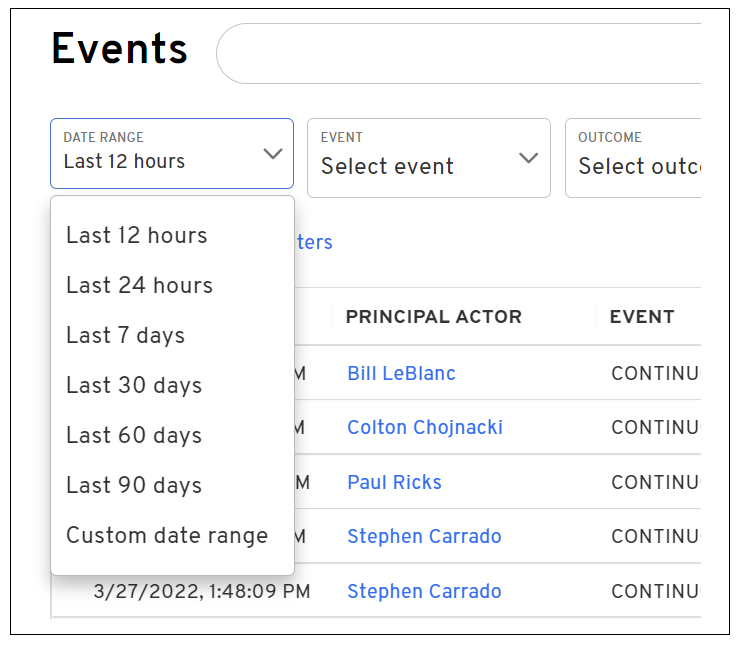
To display events that occurred within a specific period of time, select the appropriate time from the DATE RANGE drop-down menu:
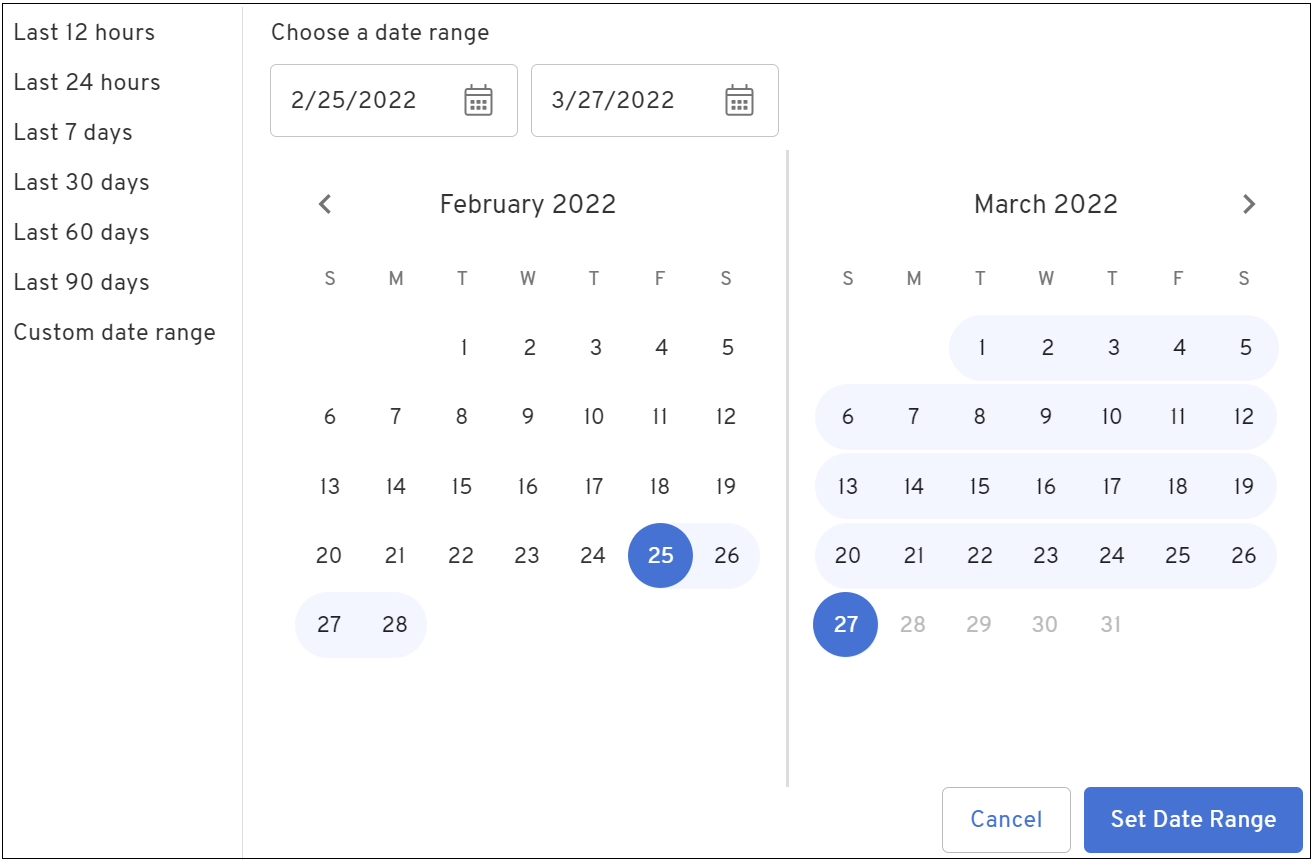
To specify a customized range, select Custom date range and provide the appropriate start and end date.
Filter on Event Types
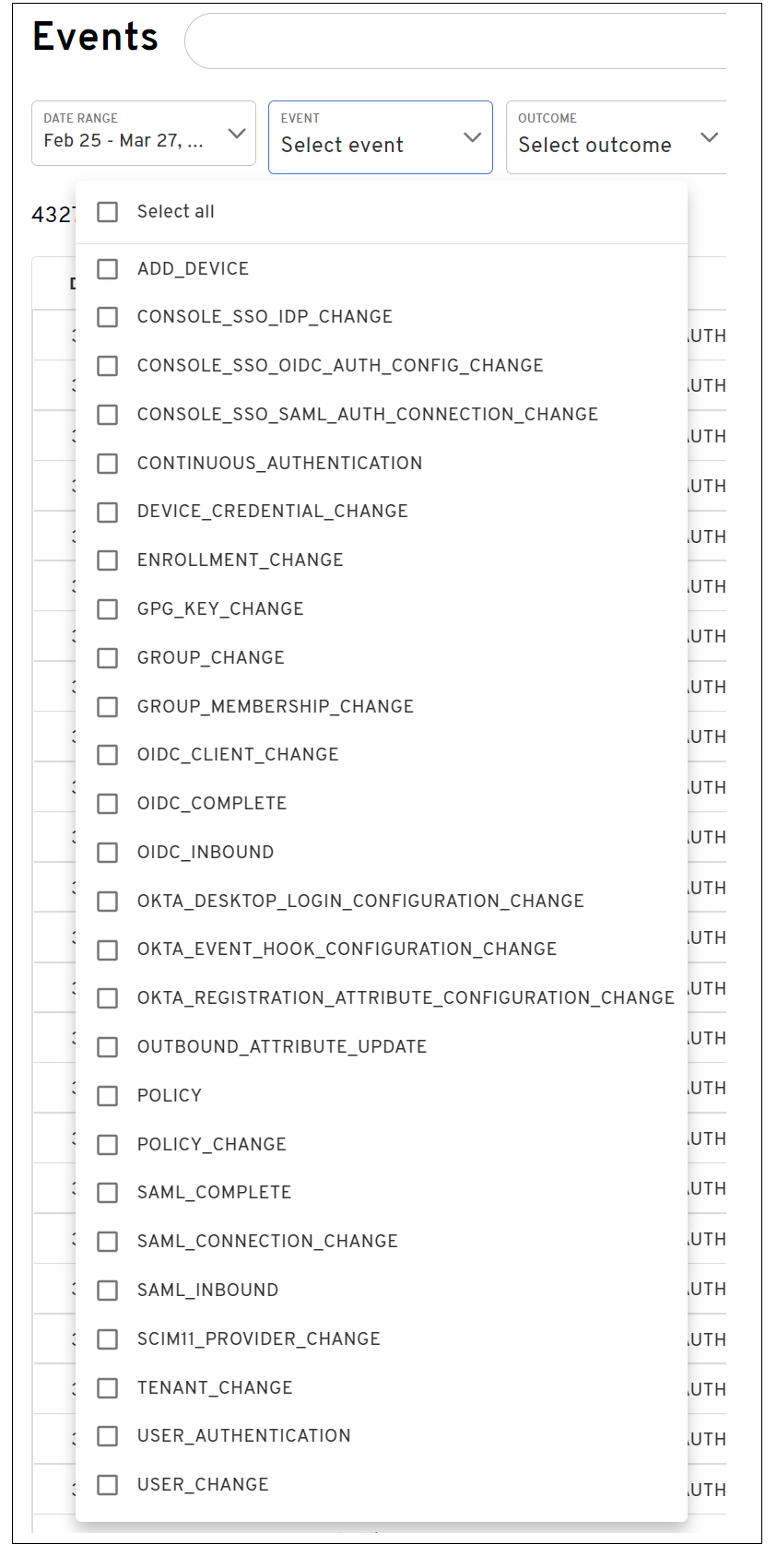
You can filter the display to only show specific events such as when a device has been added or when a device credential has changed. To filter on event types, select one or more events from the EVENT drop-down menu.
Filter on Event Outcomes
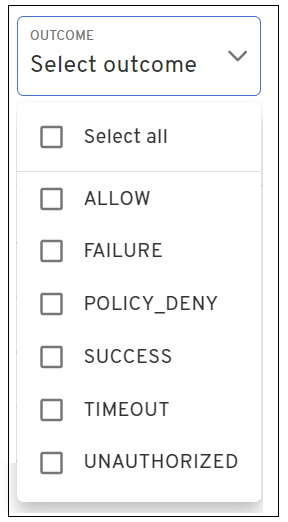
Events can be filtered to only display the outcome of an event. Event outcomes include items such as a failure, success, and policy denial. To filter based on an event outcome, select one of more items from the OUTCOME drop-down menu.
Filter on Service Events
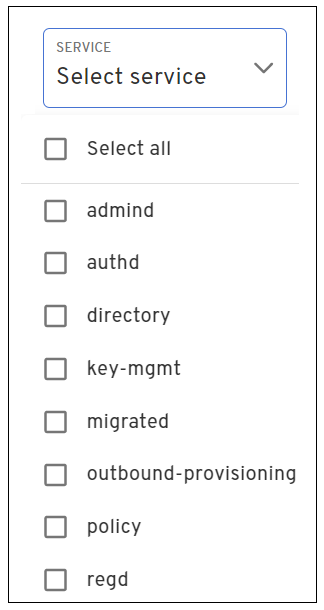
Events can be filtered to only display specific service events such as a policy change or the result of a device registration. To filter on the service events, select one or more items from the SERVICE drop-down menu.
Filter on a Specific Policy Version
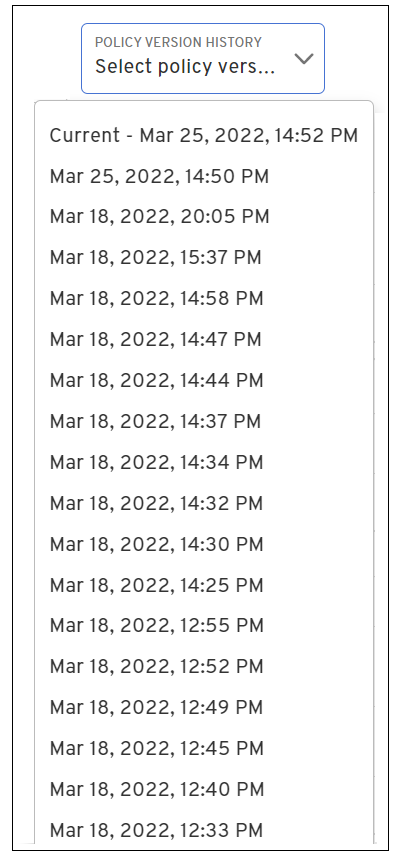
Events can be filtered on a specific policy version. To display events associated with a specific version, click the specific version from the POLICY VERSION HISTORY drop-down menu.
View User Profile
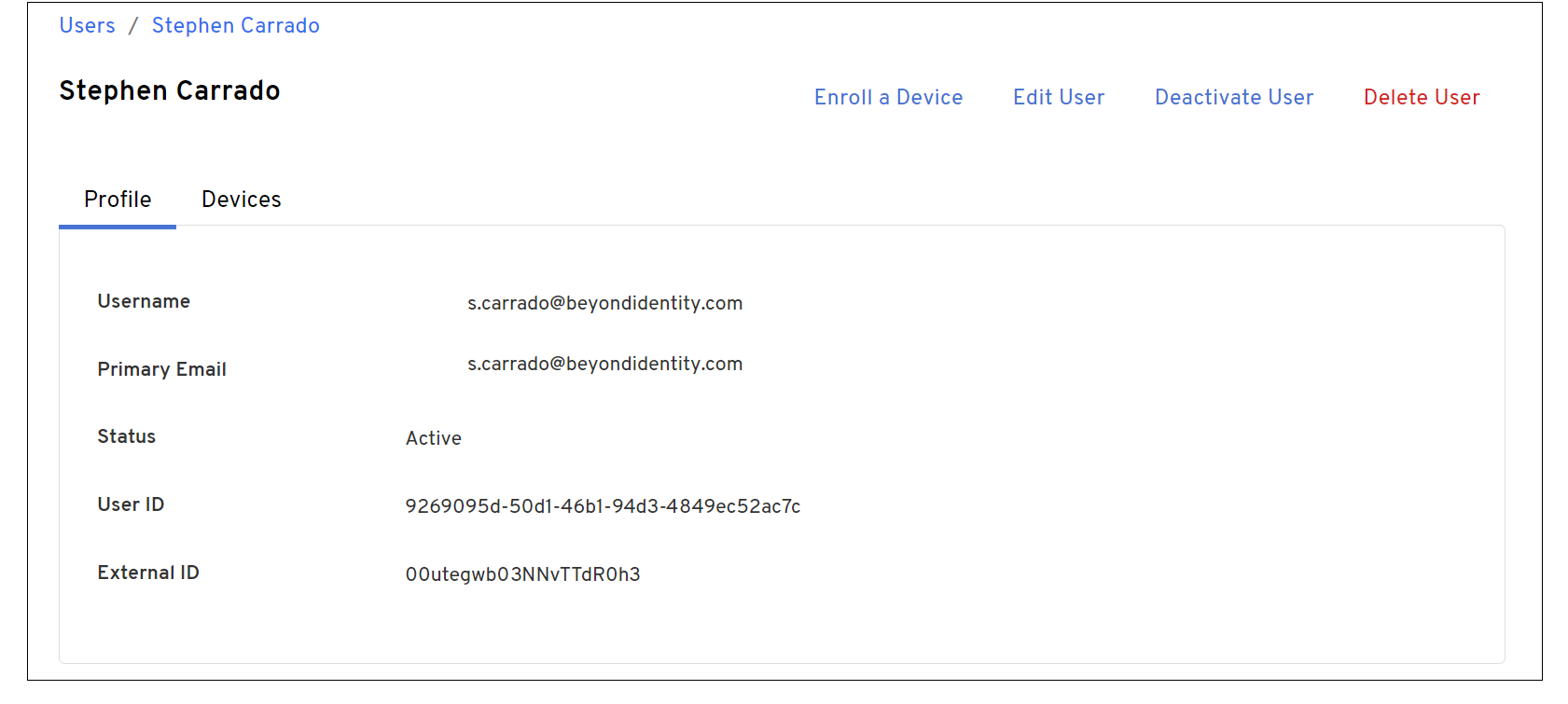
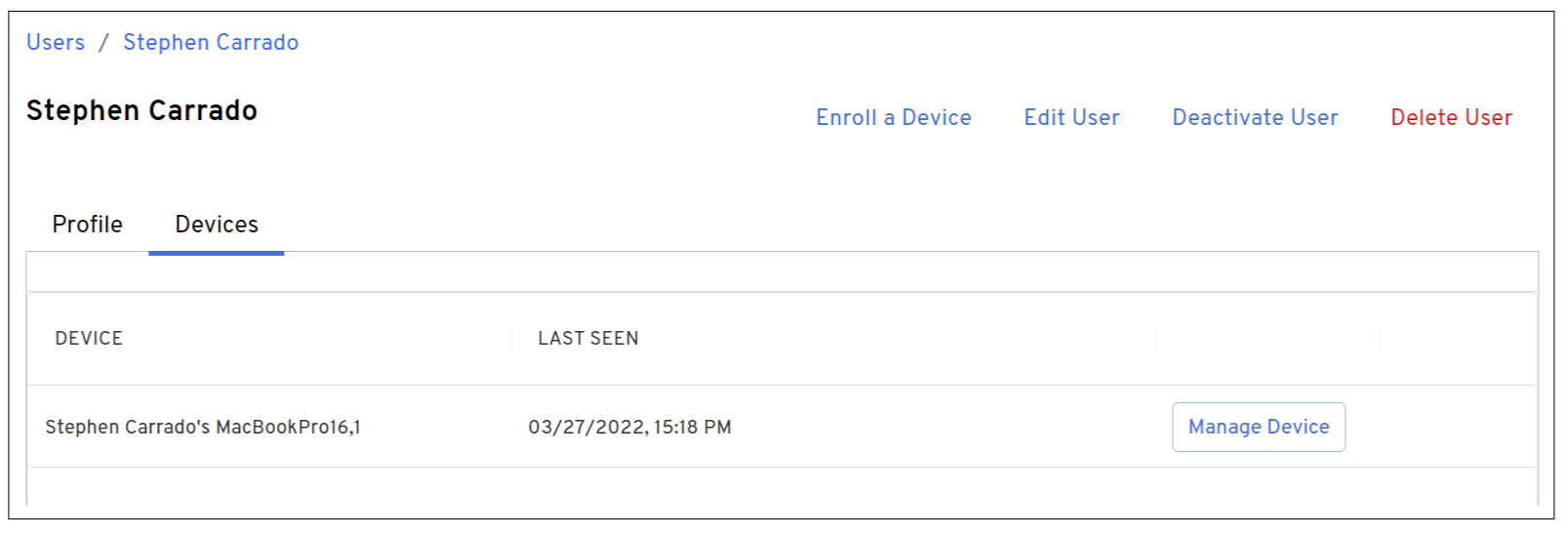
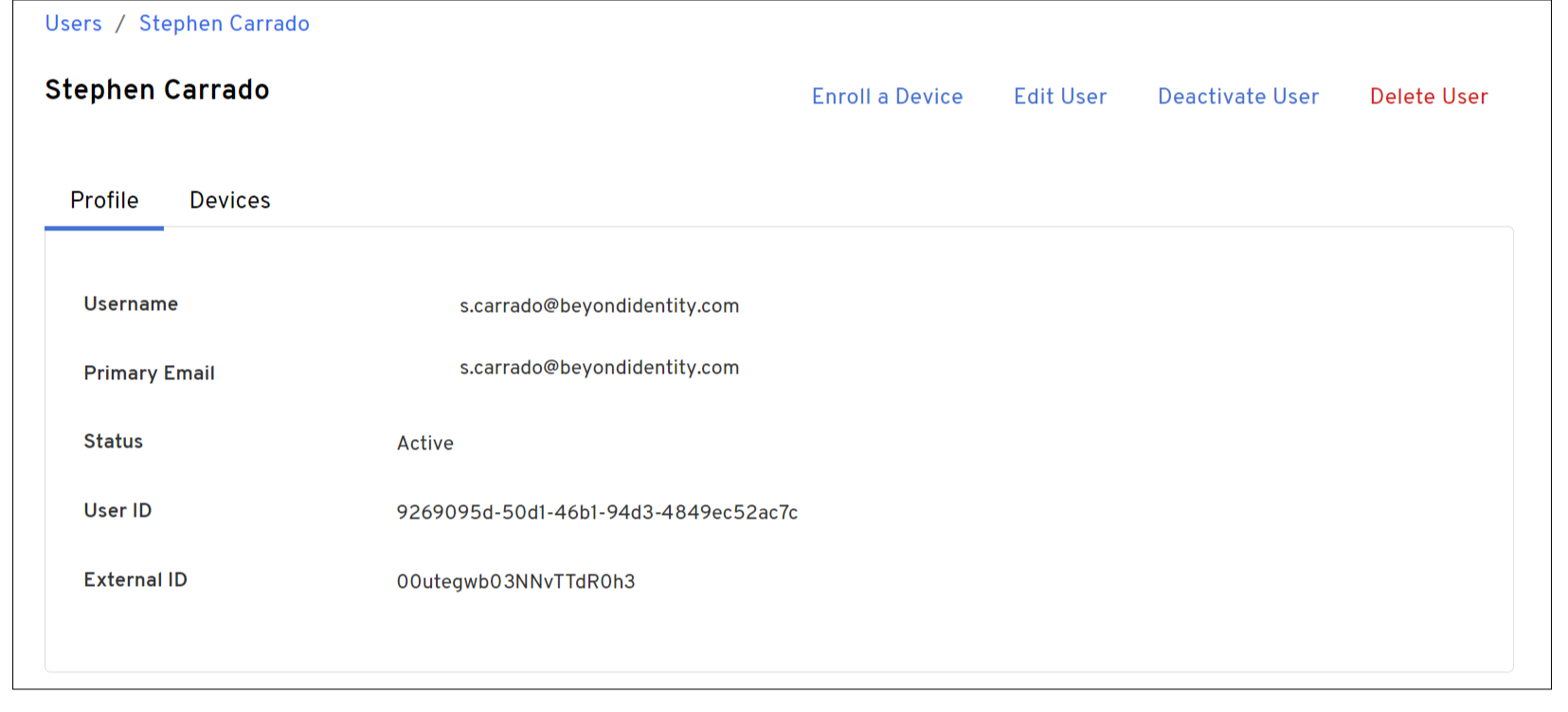
You can access a user’s profile by clicking on a specific user in the PRINCIPAL ACTOR column. The user’s profile includes information including the username, primary email address, status, user ID, external ID, and device info associated with the user.
Search Events
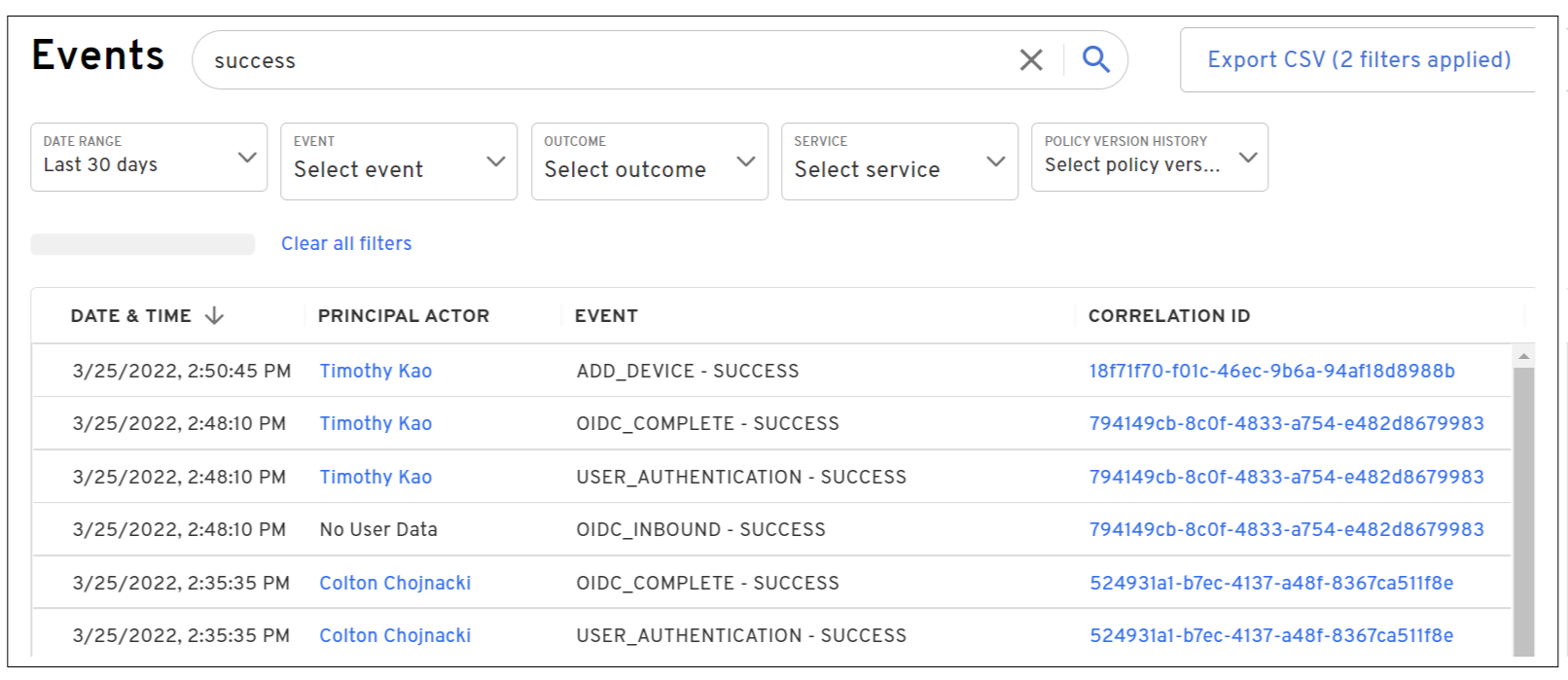
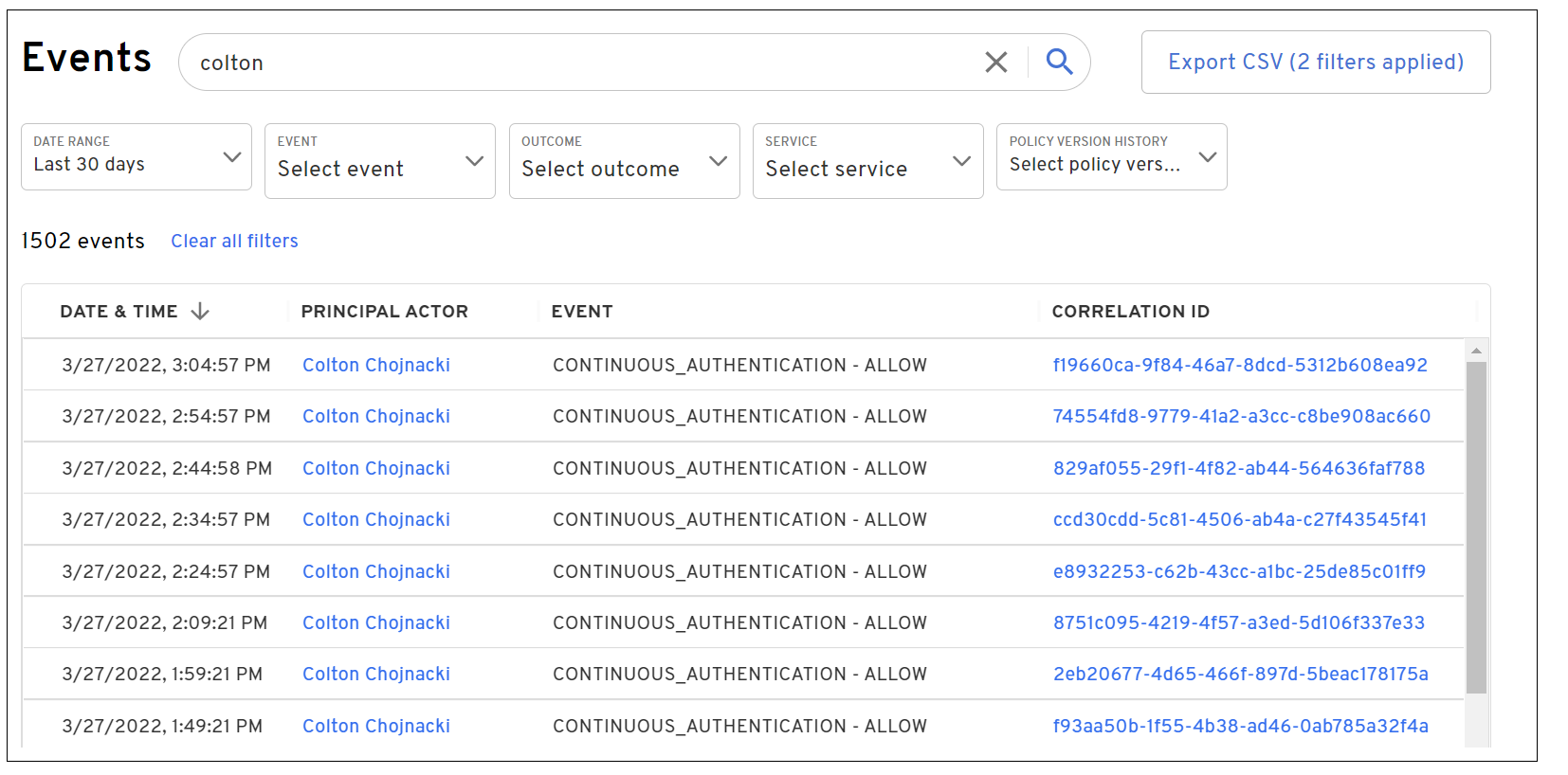
You can search for specific user or an event by typing a string in the search box at the top of the events page.
Export Event Data
Event data can be exported to a CVS file. To export event data, select the date range to include and any specific events. If no events are selected, all events within the specified time period will be exported.

Event Details
Detailed event information can be viewed by clicking on a user in the PRINCIPAL ACTOR column. Once clicked the Event Details are displayed on the right of the Events page.
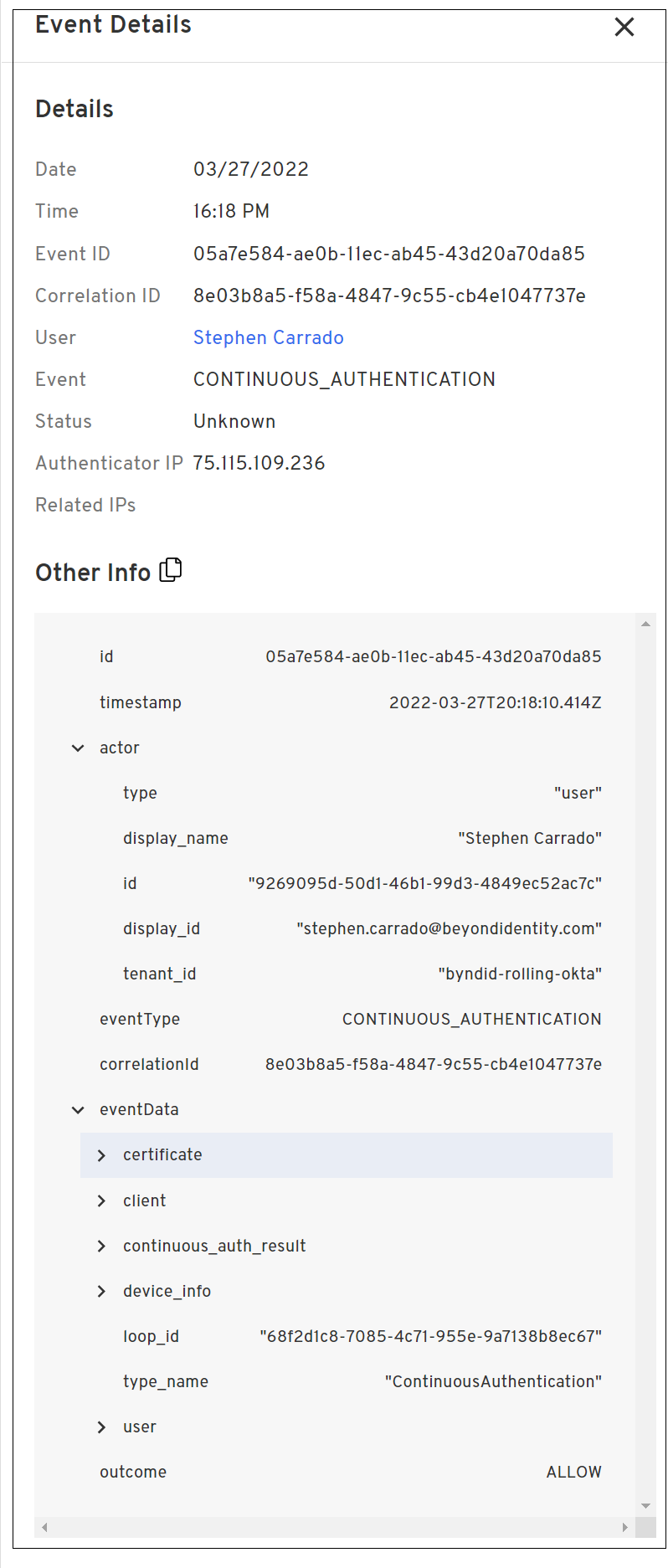
The event details include information such as:
Date and time of the event
Event and correlation IDs
User name
Event type
Event status
IP address of the Authenticator
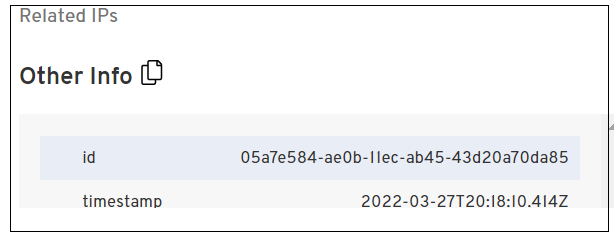
Related IP addresses, if any
Additional information includes:
Details associated with the principal actor including the user type, display name, ID, display ID, Tenant ID, event type, and correlation ID
Details associated with the event data including certificate and client information, device info, and user information
Event outcome
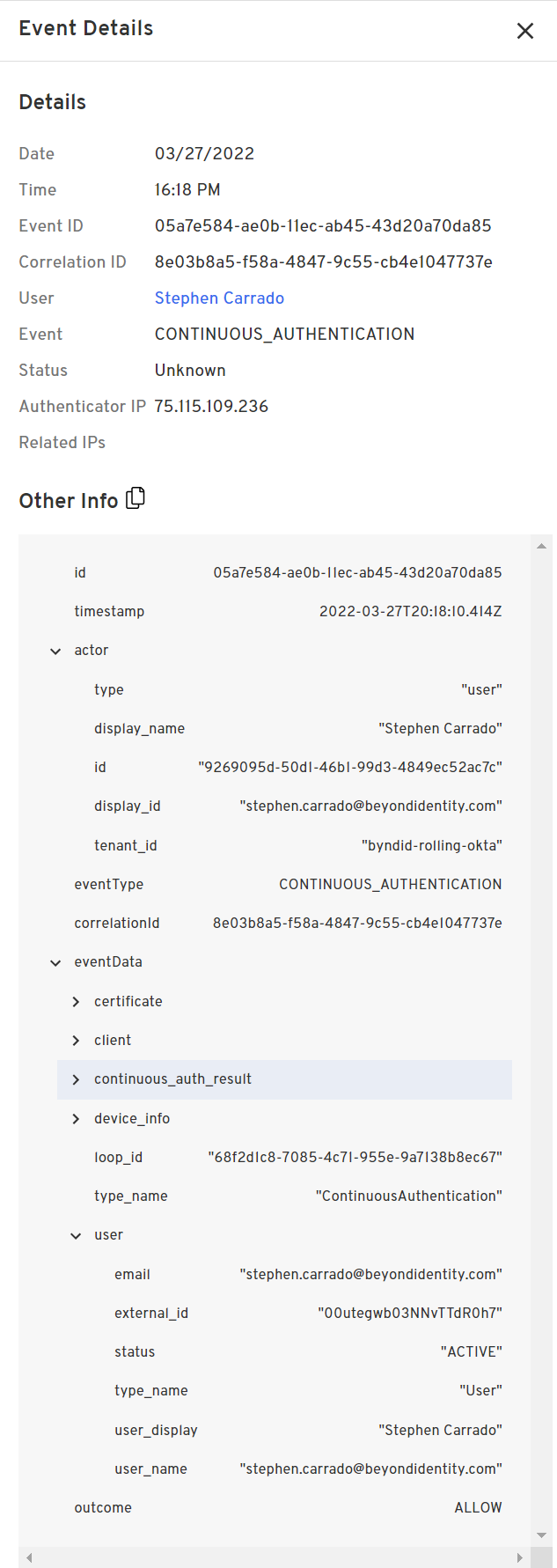
The event details can be copied to a file by clicking the icon next to Other Info.