This article explains how to set up and use RealityCheck for Microsoft Teams, a Beyond Identity plug-in that provides zero-trust, phish-resistant MFA to secure Teams meetings. It covers admin installation, prerequisites, end-user setup, uninstalling, FAQs, and resources.
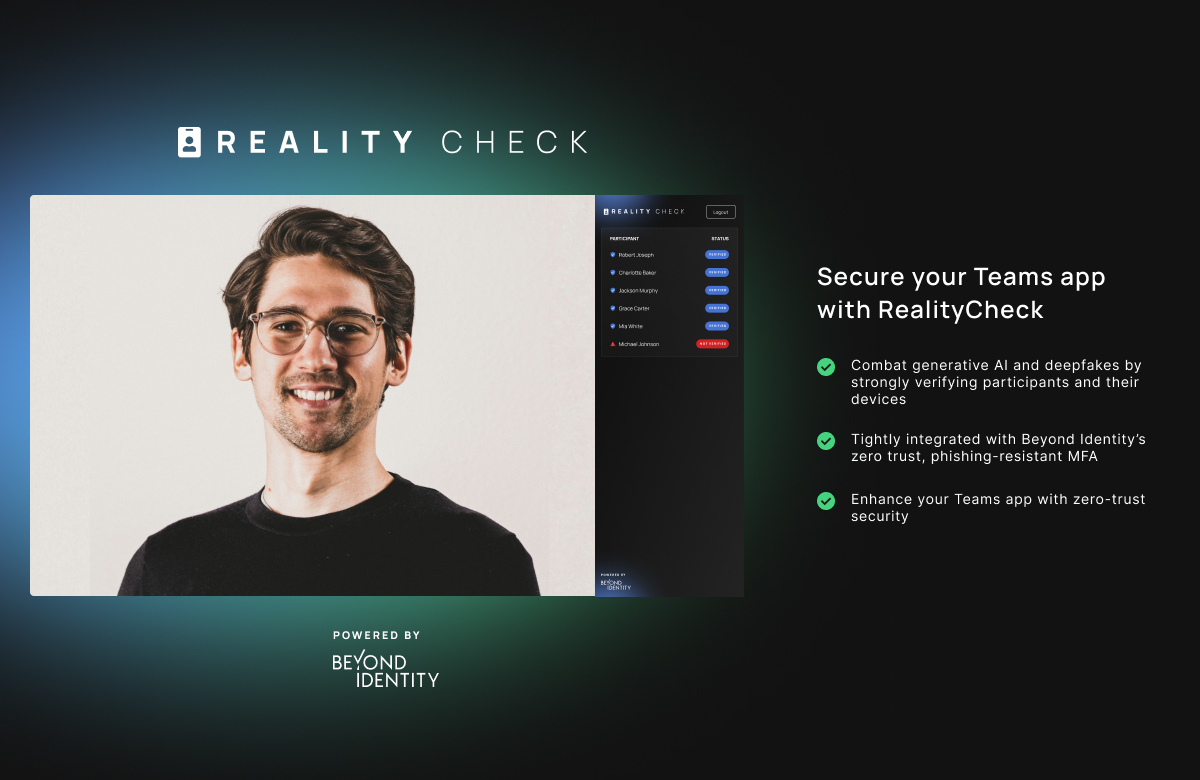
RealityCheck for Teams is a Teams plug-in for Beyond Identity customers to secure their Teams with our zero-trust, phish-resistant MFA solution. Protect your Team meetings from generative AI and deepfakes by strongly verifying users and devices on the call.
Admin Installation
Prerequisites
Microsoft Teams License
Apps for Teams enabled
Beyond Identity tenant
Note: You MUST be an existing Beyond Identity customer to have RealityCheck enabled. See section on Non Beyond Identity Customers to get started if you are not.
Existing Beyond Identity Customers
In your Admin Console, create a new OIDC Configuration named, “RealityCheck for Teams.”
Callback URL: https://realitycheck-teams.beyondidentity.com/auth/callback
Once created, please store the following values for use later:
Client ID
Client Secret
Issuer URI (if using Secure Access platform)
Next, submit a support ticket and our support team will follow up on next steps.
Select RealityCheck Intake from the drop down options.
Input in the Subject Line "RealityCheck for Teams Intake."
Provide in the Description the following:
Client ID, Client Secret, and Issuer URI from Step 2
A company identifier
We strongly recommend your email domain as the company identifier. For example, if your email address is first.last@beyondidentity.com, your company identifier should be beyondidentity.
Once the integration is successfully set up, go to the RealityCheck app from Teams Marketplace and click Get It Now.
You can deploy this app automatically to your entire workforce using App Setup Policy or App Centric Management.
For additional information, please follow the Microsoft guide on Overview of App Management and Governance in Teams Admin Center.
Non-Beyond Identity Customers
Our RealityCheck integration is a FREE add-on to our core zero-trust, phish-resistant MFA platform. You must be a Beyond Identity customer to be verified by RealityCheck.
Contact us and learn more about Beyond Identity and how RealityCheck plays into our mission.
End-user Installation
After installing RealityCheck for your organization, have your end-users do the following:
In any team, channel, or meeting, click Apps.
RealityCheck should be available and installed if the steps above were followed by your admin.
If the App is not installed, you can always search "RealityCheck" in the app marketplace in any channel, chat, or meeting.
When in a Teams channel, chat, or meeting, select the "RealityCheck" tab under Apps.
Users will be unverified and presented with a login screen. Enter the company and click Verify with Beyond Identity. This will launch the Beyond Identity authentication flow.

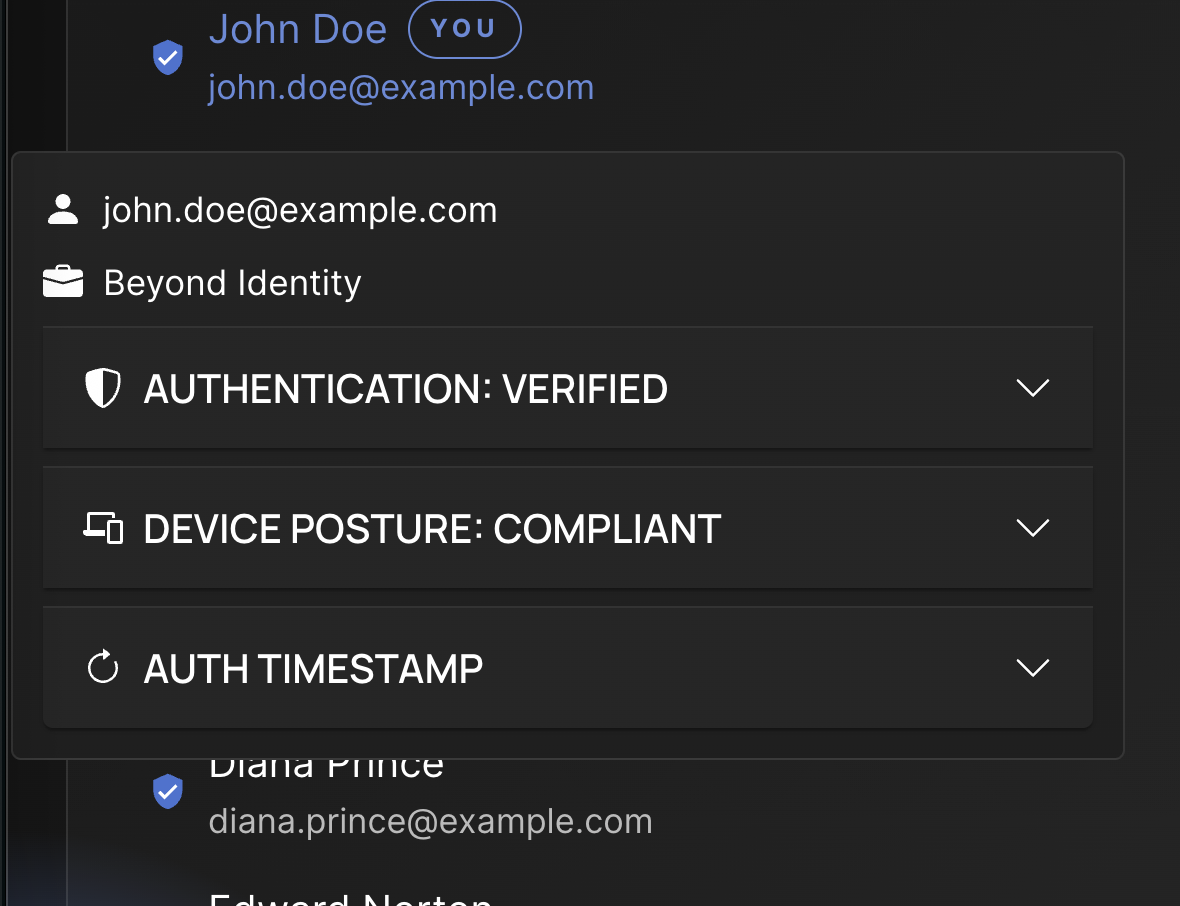
Once verified, users will be able to see the full list of verified and unverified participants.

Hover over the shield icon to get additional information about the authentication.
How to uninstall RealityCheck
Login to your Azure account as Admin and navigate to the Teams App Marketplace.
Click Manage > Installed Apps or search for the RealityCheck App.
Click the RealityCheck App.
Click Uninstall.
FAQs
Q: Is this secure?
A: Yes, all users who verify their authenticity with Beyond Identity have their identity and device strongly verified.
Q: What are technical requirements for RealityCheck?
A: Your organization must be using Teams as an internal communications platform, and you must be a Beyond Identity customer. Contact us to get a demo of our products.