Beyond Identity integrates with partner platforms such as CrowdStrike, Jamf, Microsoft Intune, and VMware Workspace ONE to enrich authentication decisions with device posture data. When a partner API experiences an outage, authentication outcomes can be affected depending on how your access control policy is configured. This article explains how the integration cache works, how outages affect authentication, and the steps you can take to monitor for and mitigate disruptions.
How partner integration caching works
Beyond Identity queries each connected partner integration through its API on a regular interval to build a cache of device unique identifiers. At the time of authentication, Beyond Identity reads the unique identifier from the endpoint and cross-references it against the integration cache to evaluate policy.
If API calls to a partner integration fail repeatedly in succession, Beyond Identity stops cross-referencing the cached device list for that integration. When this happens, any policy rule that requires a match against the partner integration cache evaluates as a non-match, which can result in users being denied authentication.
Recommendations to prevent authentication disruptions
Beyond Identity recommends a layered approach to reduce the impact of partner API outages:
- Monitor integration fetch events in your SIEM.
- Configure policy rules that allow authentication to proceed when an integration is unavailable.
Each option is described in the sections that follow.
Monitor integration fetch events with your SIEM
Configure your SIEM to monitor the FETCH_DATA_FROM_INTEGRATION event type and create internal alerts for failed fetch attempts. This gives your team early warning of partner API outages before they begin affecting end-user authentication.
Recommended alerting practices:
- Alert on consecutive failures from the same integration rather than on every individual failure.
- Include the integration name and tenant identifier in the alert payload to speed up triage.
- Route alerts to the on-call channel responsible for identity infrastructure.
Configure policy to fail open during an outage
You can write policy rules so that authentication is allowed to proceed if a partner integration is experiencing an outage. This is commonly referred to as a "fail open" rule. The rule temporarily bypasses the integration check while the connection is unavailable, then resumes enforcement automatically once the integration is restored. Note: The rule must be located before the main authentication rule within the policy sequence for the user to be routed correctly. Beyond Identity's policy engine exits on a rule when all the attributes have been met.
Add a connection availability rule
Add a rule that allows authentication when the partner integration connection is not available. The example below shows a fail-open rule for Workspace ONE UEM:
.png)
The rule is configured as follows:
- If event matches:
Transaction: AuthenticationANDWorkspace ONE UEM Connection: Not Available - Then:
Allow W/ Biometric Verification
When the partner integration connection is unavailable, this rule allows the user to authenticate with biometric verification and bypasses the integration cache check.
Strengthen the bypass with a security software check
For Endpoint Detection and Response (EDR) integrations such as CrowdStrike, you can strengthen the fail-open rule by adding a Security Software contains attribute. This requires the endpoint to have the EDR agent installed locally even when the partner API is unreachable, which preserves a baseline of device posture verification during the outage.
The example below shows an EDR fail-open rule for CrowdStrike on Windows endpoints, with an installation check included:
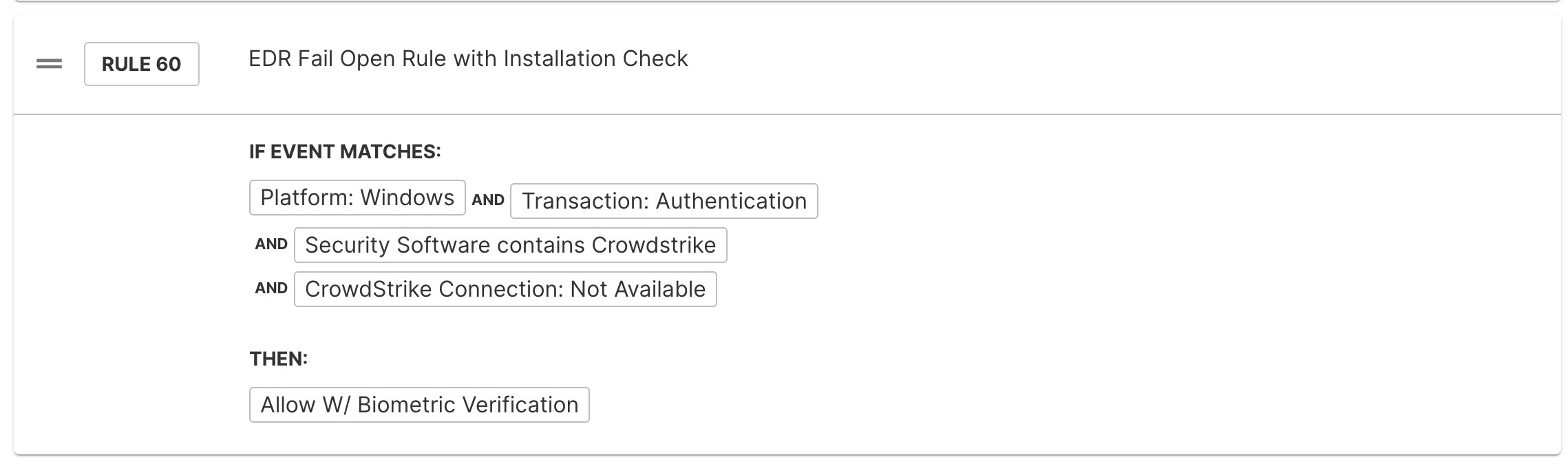
The rule is configured as follows:
- If event matches:
Platform: WindowsANDTransaction: AuthenticationANDSecurity Software contains CrowdstrikeANDCrowdStrike Connection: Not Available - Then:
Allow W/ Biometric Verification
The Security Software contains attribute is suitable for EDR integrations only. It cannot be used for Mobile Device Management (MDM) integrations such as Jamf, Intune, or Workspace ONE, because MDM enrollment cannot be reliably verified from local endpoint software.
Order rules correctly in your policy
Rule order matters. Place the connection availability rule before your default allow rule that contains the full partner integration attribute checks. The recommended sequence is:
- Connection not available rule. Allows authentication when the partner integration is unreachable, optionally combined with an installed security software check.
- Default allow rule. Performs the full set of partner integration attribute checks under normal operating conditions.
This sequence ensures that the fail-open path is evaluated only when the integration is genuinely unavailable, and that normal posture checks continue to apply during regular operation.
A fail-open rule reduces the strength of your access control during an outage. Review the rule with your security team to confirm it meets your organization's risk tolerance before deploying it to production.